In this article, you will learn how to build AI agents that can browse and interact with real websites using Playwright, browser-use, and LangGraph.
Topics we will cover include:
Why Playwright is the right foundation for browser automation in 2026, and how it differs from Selenium.
How to scrape dynamic, JavaScript-rendered pages and complete multi-step forms reliably.
How to wire browser actions into LangGraph and browser-use agents, handle anti-bot detection, manage waiting and session persistence, and deploy the result in Docker.
Building Browser-Using AI Agents in Python
Introduction
Most AI agent tutorials start with an API. They show you how to call OpenWeather, hit the Stripe endpoint, pull data from GitHub. That is a fine starting point until you try to build something real and realize that the task you actually need done does not have an API.
Think about what humans do with browsers every day: filing government forms, reading competitor pricing, extracting research from sites that guard their data behind JavaScript rendering, logging into portals that have never heard of OAuth. There are roughly 1.1 billion websites on the internet. A vanishingly small fraction of them have public APIs. The rest only speak browser.
An agent that is limited to API calls handles maybe 5% of the tasks a human worker does daily. Give that agent a browser, and the coverage approaches everything. That is the gap this article closes.
The global AI agents market stands at \$10.91 billion in 2026 and is projected to reach \$50.31 billion by 2030, with browser-capable agents at the center of that growth. 27.7% of enterprises are already running agentic browsers in production, up from virtually none two years prior. The tooling has matured fast, and the patterns are settled enough to teach properly.
By the end of this article, you will have a working browser agent that navigates real websites, fills forms, extracts structured data, and connects to an LLM that decides what to do next, all in Python.
Why Playwright, Not Selenium
If you built browser automation five years ago, you built it with Selenium. Selenium is still widely deployed, still works, and is not going anywhere. But for any new project in 2026, Playwright is the default. The reasons are practical, not theoretical.
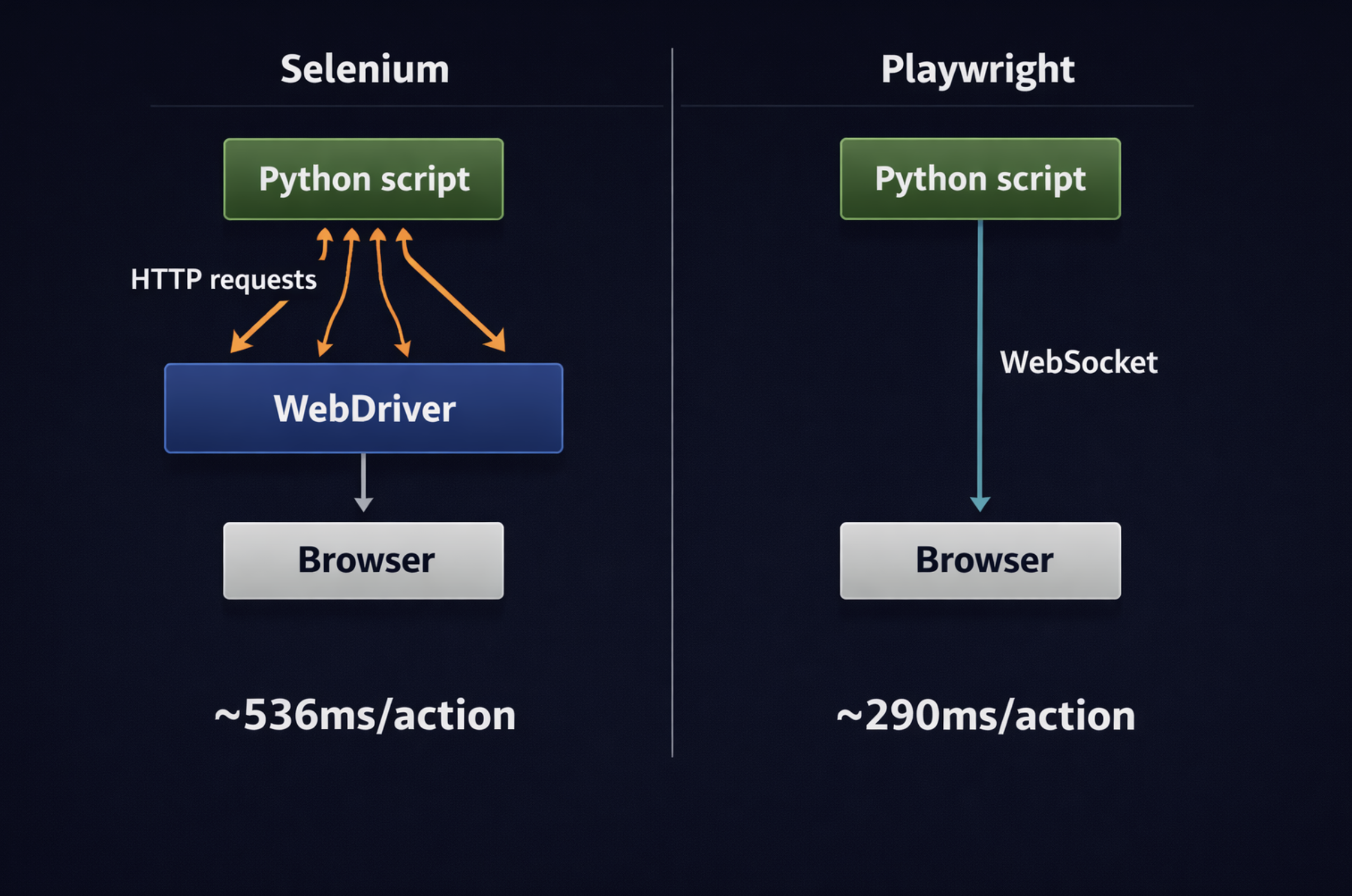
Selenium communicates with the browser by sending individual HTTP requests to a WebDriver. Every action, click, type, scroll, is a separate request. Playwright uses a persistent WebSocket connection for the entire session. Commands flow through that channel with no per-action round-trip cost. Independent benchmarks consistently show Playwright running 30-50% faster than Selenium at the test-suite level and averaging ~290ms per action versus Selenium’s ~536ms. For a browser agent that might execute hundreds of actions, that gap compounds.
Playwright also bundles its own browser binaries. When you install it, you get pre-configured versions of Chromium, Firefox, and WebKit that are guaranteed to work with your Playwright version. No driver version mismatches, no broken CI pipelines because someone updated Chrome. It has built-in auto-waiting before it clicks an element; it verifies the element is visible, enabled, and not animating. You do not have to write time.sleep(2) and hope for the best.
For AI agents specifically, Playwright fires real mouse and keyboard events that mirror how humans interact with browsers. Sites designed to detect automation look for synthetic DOM clicks. Playwright’s interaction model is harder to distinguish from genuine human input.
A side-by-side architecture comparison diagram (click to enlarge)
There is also the browser-use library, which sits one level higher. Browser-use is a Python library that gives an LLM a working browser. Under the hood, it uses Playwright to drive the browser, but the LLM reads the page state and decides what to click, type, and extract, no CSS selectors required. You give it a task in plain English, and it figures out the rest. We will cover both raw Playwright and browser-use in this article, because they serve different needs: Playwright when you want precise, predictable control; browser-use when you want the agent to handle navigation decisions autonomously.
Setting Up the Environment
You need Python 3.10 or higher, an OpenAI API key, and about five minutes.
Step 1: Create a virtual environment
1
2
3
4
5
6
7
python-mvenv browser_agent_env
# macOS / Linux
source browser_agent_env/bin/activate
# Windows
browser_agent_env\Scripts\activate
Step 2: Install dependencies
1
2
3
4
5
6
7
pip install playwright\
browser-use\
langchain\
langchain-openai\
langgraph\
langchain-community\
python-dotenv
Step 3: Install the browser binaries
This is the step most people miss. Playwright needs to download Chromium, Firefox, and WebKit separately from the Python package. Run this once after installing:
1
playwright install chromium
If you want all three browser engines: playwright install. Chromium alone is sufficient for most agent work and is smaller to download.
Step 4: Store your API key
Create a .env file in your project directory:
1
OPENAI_API_KEY=your_openai_api_key_here
Add .env to your .gitignore immediately. Do not commit API keys.
Step 5: Verify everything works
Here is a first script that navigates to a URL, reads the heading, and saves a screenshot. Use example.com, a publicly available test domain maintained by IANA that will not block you.
How to run: Save as first_run.py and run python first_run.py
1
2
3
4
5
6
7
8
9
10
11
12
13
14
15
16
17
18
19
20
21
22
23
24
25
26
27
28
29
30
31
32
33
34
35
36
37
38
39
40
41
42
43
44
45
46
47
# first_run.py
# Navigate to a URL, take a screenshot, and extract the page title.
What this does: async_playwright() is the entry point for the entire Playwright session. The browser_context is equivalent to opening a fresh incognito window; cookies, local storage, and cache are isolated from everything else. wait_until=”networkidle” tells Playwright to wait until the page has finished all its network activity before your code continues, which is the safest wait strategy for dynamic pages.
If this runs and saves a screenshot, your environment is working correctly.
Web Navigation and Scraping
The reason you need Playwright instead of requests + BeautifulSoup is JavaScript rendering. Modern websites deliver a skeleton of HTML and then build the actual content dynamically after the page loads: React, Vue, Angular, Next.js. A plain HTTP request fetches the skeleton. Playwright runs a real browser, so it sees exactly what a human sees after all JavaScript has executed.
The target below is books.toscrape.com, a legal scraping sandbox built for practice. It paginates results, uses dynamic class names for ratings, and closely mirrors the structure of real e-commerce product pages.
How to run: Save as scrape_books.py and run python scrape_books.py
1
2
3
4
5
6
7
8
9
10
11
12
13
14
15
16
17
18
19
20
21
22
23
24
25
26
27
28
29
30
31
32
33
34
35
36
37
38
39
40
41
42
43
44
45
46
47
48
49
50
51
52
53
54
55
56
57
58
59
60
61
62
63
64
65
66
67
68
69
70
71
72
# scrape_books.py
# Scrape book titles, prices, and ratings from books.toscrape.com
# This is a legal scraping sandbox site built for practice.
print(f" Extracted {len(books)} books from page {page_num}")
await browser.close()
returnresults
async def main():
books=await scrape_books(max_pages=2)
print(f"\nTotal books scraped: {len(books)}")
print(json.dumps(books[:3],indent=2))
asyncio.run(main())
What this does:wait_for_selector() is the key call here. Instead of sleeping for a fixed time and hoping the content has loaded, it watches the DOM and proceeds the moment the target element appears, or raises a TimeoutError if it does not appear within the timeout window. That is the right behavior: fail fast and explicitly rather than silently extracting from an empty page.
The rating extraction deserves attention. The star rating is encoded as a CSS class (star-rating Three), not a number. The code strips “star-rating” from the class string to get the text value. This is the kind of thing you only know by inspecting the actual HTML. When you hand this task to a raw LLM with no browser, it has no way to know what the class structure looks like. With Playwright, you can inspect it directly and extract it exactly.
Form Completion and Multi-Step Flows
Filling forms is where browser agents earn their keep and where most automation scripts fail. The reason is that web forms are not just inputs and buttons. They fire focus, input, change, and blur events in sequence. JavaScript validation listens for those events. If you inject a value into an input field by directly setting value in the DOM (as older automation tools often do), the validation listeners never fire and the form breaks.
Playwright’s fill() and click() methods fire real browser events in the right order, which is why they work on form validation that would block lower-level approaches.
The target below is the-internet.herokuapp.com/login, a public test site maintained specifically for automation practice. It accepts tomsmith / SuperSecretPassword! as valid credentials and returns clear success/failure messages.
How to run: Save as form_submit.py and run python form_submit.py
1
2
3
4
5
6
7
8
9
10
11
12
13
14
15
16
17
18
19
20
21
22
23
24
25
26
27
28
29
30
31
32
33
34
35
36
37
38
39
40
41
42
43
44
45
46
47
48
49
50
51
52
53
54
55
56
57
58
59
60
61
62
63
64
65
# form_submit.py
# Complete and submit a multi-field login form on a public demo site.
# Target: https://the-internet.herokuapp.com/login (public test site)
What this does: The pattern here, fill() → click() → wait_for_load_state() → check for result element, is the template for almost any form interaction. The wait_for_load_state(“networkidle”) after the submit is important: without it, you query the DOM before the page has updated and get the pre-submission state, not the result.
For more complex forms with file uploads, dropdowns, and checkboxes:
Raw Playwright scripts are powerful but fixed. They do exactly what you coded, no more. The moment a page changes its structure, or the task requires a decision the script did not anticipate, it breaks.
Connecting Playwright to an LLM changes this. Browser actions become tools the agent can call when it decides they are needed. The agent reads the task, reasons about what to do, calls a tool, reads the result, and decides what to do next. That loop handles variation that a fixed script cannot.
This is the bridge from “browser automation script” to “AI agent.”
How to run: Save as agent_tools.py, ensure OPENAI_API_KEY is in your .env, then run python agent_tools.py
1
2
3
4
5
6
7
8
9
10
11
12
13
14
15
16
17
18
19
20
21
22
23
24
25
26
27
28
29
30
31
32
33
34
35
36
37
38
39
40
41
42
43
44
45
46
47
48
49
50
51
52
53
54
55
56
57
58
59
60
61
62
63
64
65
66
67
68
69
70
71
72
73
74
75
76
77
78
79
80
81
82
83
84
85
86
87
88
89
90
91
92
93
94
95
96
97
98
99
100
101
102
103
104
105
106
107
108
109
110
111
112
113
114
115
116
117
118
119
120
121
122
123
124
125
126
127
128
129
130
131
132
133
134
135
136
137
138
139
# agent_tools.py
# LangGraph agent with three browser tools: navigate_and_extract, fill_and_submit_form, take_screenshot
"Go to https://example.com, read the page content, "
"then take a screenshot called example.png"
)
)]
})
print(result["messages"][-1].content)
await close_browser()
asyncio.run(main())
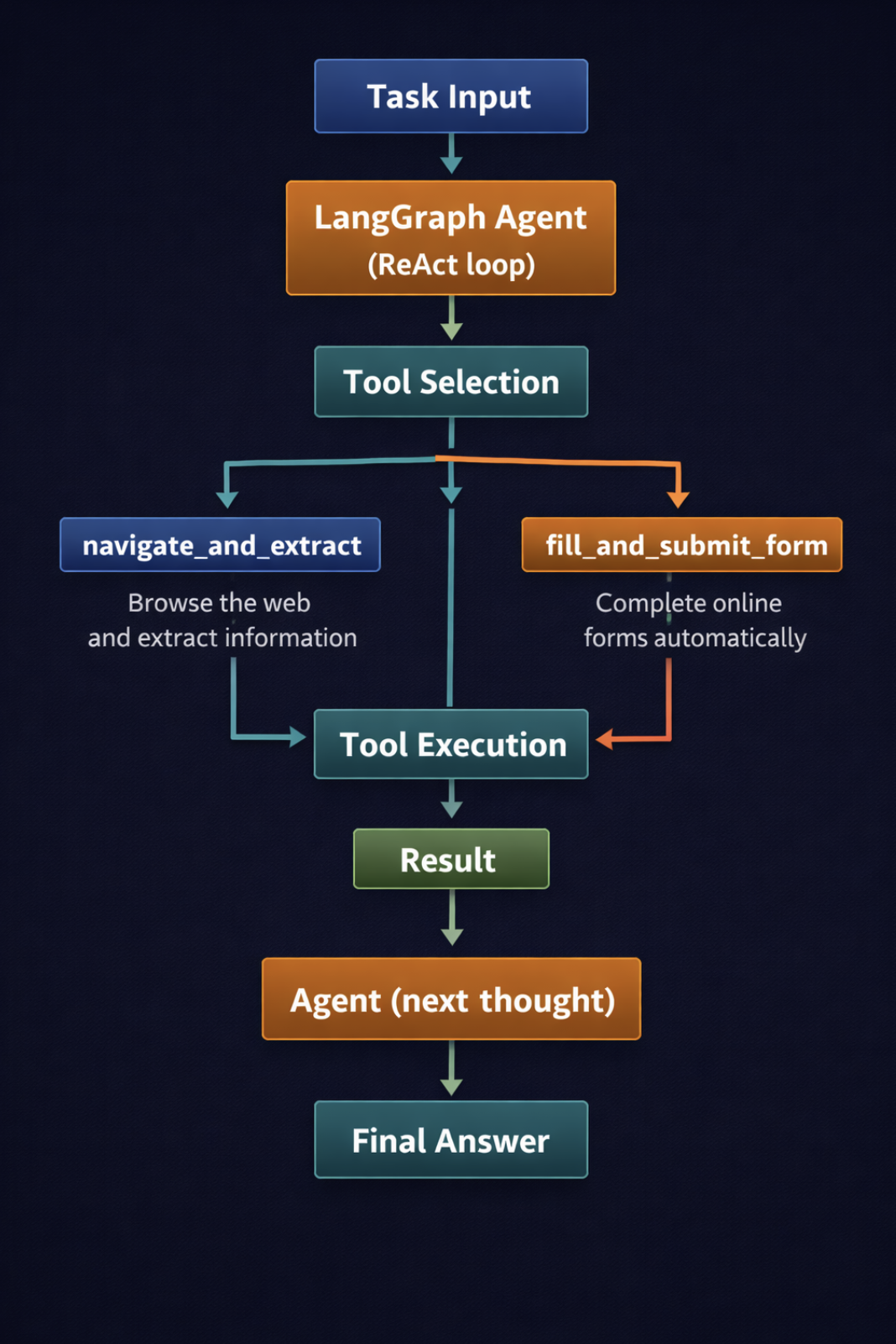
What this does: The three @tool-decorated functions are registered with the agent. Each docstring is what the LLM reads to understand what the tool does and when to use it. Write them like job descriptions, not code comments. The shared _browser and _page globals mean the browser stays open across multiple tool calls, which is essential for tasks that span several pages in the same session. Because the tools are defined with async def, the agent is invoked with ainvoke() rather than invoke(), so the tool calls run on the same event loop that main() is already using.
A vertical flow diagram showing how a task request flows through the agent (click to enlarge)
Image by Editor
The key design decision in this snippet is the shared browser instance. If each tool call launched and closed its own browser, you would lose all session state between calls, such as cookies, navigation history, and any form state the agent had already built up. Keeping the browser alive for the full agent session preserves that context.
Using browser-use for High-Level Agent Tasks
Raw Playwright with @tool functions gives you precise control. The trade-off is that you are still writing selectors, still thinking about page structure, still handling every edge case manually. If the site changes its HTML, your selectors break.
browser-use takes a different approach. Instead of writing selectors, you give the agent a task in plain English. browser-use uses Playwright under the hood, but the LLM reads the current page state on each step and decides what to do next: which element to click, what to type, and when the task is complete. The page structure is not hardcoded into your code. The agent figures it out at runtime.
browser-use is a Python library that gives an LLM a working browser. The LLM reads each page and decides what to click, type, and extract. This makes it resilient to site changes that would break a selector-based script.
When to use browser-use over raw Playwright:
If the task is exploratory and the page structure is unpredictable, use browser-use.
If you are running a fixed, repeatable workflow where every selector is known and stable, raw Playwright is more reliable and cheaper per run.
A browser-use agent makes multiple LLM calls per task step; a scripted Playwright run makes none.
How to run: Save as browser_use_agent.py, ensure OPENAI_API_KEY is in your .env, then run python browser_use_agent.py
1
2
3
4
5
6
7
8
9
10
11
12
13
14
15
16
17
18
19
20
21
22
23
24
25
26
27
28
29
30
31
32
33
34
35
36
37
38
39
40
41
42
43
44
45
46
47
48
49
50
51
52
53
54
55
# browser_use_agent.py
# A browser-use agent that accepts a natural language task and completes it
# without any CSS selectors or hardcoded page structure.
# final_result() returns the agent's extracted content or conclusion
returnresult.final_result()or"Task completed with no extracted output."
async def main():
task=(
"Go to https://books.toscrape.com and find the 3 most expensive books "
"on the first page. Return their titles and prices."
)
print(f"Task: {task}\n")
output=await run_browser_task(task)
print(f"Result:\n{output}")
asyncio.run(main())
What this does: The entire task, navigating to the site, reading the page, identifying the three highest prices, and extracting them, is handled by the agent without a single CSS selector in your code. If books.toscrape.com redesigns its price display tomorrow, the script still works. With a selector-based scraper, it would break silently.
The max_actions_per_step=5 parameter is worth explaining. On each step, the agent reads the page and can decide to take up to five actions (click, type, scroll, navigate) before re-reading the page. Keeping this low forces the agent to check its work more frequently, which catches mistakes earlier.
Handling the Hard Parts
Three things break most browser agents in production. Each has a solution, but none of them is obvious until you have already been burned.
1. Anti-Bot Detection
Websites that do not want to be automated detect automation in several ways, such as checking the navigator.webdriver property (which Playwright sets to true by default), looking for headless browser fingerprints in the JavaScript environment, and analyzing interaction patterns that are too fast or too uniform to be human.
The most important mitigation is removing the webdriver flag. Beyond that, a realistic user agent string, a standard viewport size, and a realistic locale and timezone cover most detection methods short of sophisticated fingerprint analysis.
1
2
3
4
5
6
7
8
9
10
11
12
13
14
15
16
17
18
19
20
21
22
23
24
25
26
27
28
29
30
31
32
33
34
35
36
37
38
39
40
41
42
43
# hard_parts.py -- Part 1: Anti-bot stealth launch
What this does: The add_init_script() call runs before any page JavaScript executes, which means the navigator.webdriver override is in place before the site’s detection code can check for it. The –disable-blink-features=AutomationControlled launch argument removes a separate automation flag at the browser engine level. Together, these two changes handle the most common detection methods.
For sites with aggressive fingerprinting and CAPTCHA systems, these mitigations will not be enough. Services like Browserbase, Spidra and Brightdata’s Scraping Browser handle CAPTCHA solving, residential IP rotation, and browser fingerprint management as managed infrastructure.
2. Smart Waiting
The second failure mode is timing. The reflex is to add time.sleep() calls and increase them when things break. This is wrong in both directions: too short on slow connections, too long on fast ones, and completely opaque when debugging.
Playwright has four proper wait strategies. Use the one that matches what you are actually waiting for:
1
2
3
4
5
6
7
8
9
10
11
12
13
14
15
16
17
18
19
20
21
22
23
24
25
26
27
28
29
# Part 2: Smart waiting strategies (add to your scraper or agent tools)
async def smart_wait_examples(page):
"""
Four ways to wait for the right page state, without arbitrary sleeps.
"""
# STRATEGY 1: Wait for a specific element to appear in the DOM
# Use when you know exactly what element signals content has loaded
# STRATEGY 4: Wait for a JavaScript variable to be set
# Use when no visual element reliably signals the ready state
await page.wait_for_function(
"() => window.__dataLoaded === true",
timeout=10000
)
What this does: Each strategy is tied to a specific observable event rather than an arbitrary time delay. wait_for_selector watches the DOM. expect_response hooks into the network layer. wait_for_url monitors navigation. wait_for_function evaluates JavaScript in the browser context. Use whichever one most directly signals “the thing I need is now ready.”
3. Session and Cookie Persistence
The third failure mode is losing session state. If your agent logs into a site during step one and then the browser context is destroyed, step two has no authentication. Recreating the login on every run is slow and can trigger rate limiting or lockout.
The solution is saving cookies to disk after login and loading them at the start of every subsequent run:
1
2
3
4
5
6
7
8
9
10
11
12
13
14
15
16
17
18
19
20
# Part 3: Session persistence across runs
COOKIES_FILE=Path("session_cookies.json")
async def save_session(context)->None:
"""Save browser cookies to disk after a successful login."""
print(f"Session saved: {len(cookies)} cookies written.")
async def load_session(context)->bool:
"""Load saved cookies before navigating. Returns True if session was found."""
ifnotCOOKIES_FILE.exists():
print("No saved session. Fresh login required.")
returnFalse
cookies=json.loads(COOKIES_FILE.read_text())
await context.add_cookies(cookies)
print(f"Session restored: {len(cookies)} cookies loaded.")
returnTrue
What this does:context.cookies() returns all cookies for the current browser context, including session tokens and authentication cookies. Writing them to JSON and reloading them on the next run means the browser starts in an authenticated state. Note that sessions expire; add a check that falls back to a fresh login if the saved session returns a redirect to the login page.
Deploying Browser Agents
Getting a browser agent working locally is one thing. Running it reliably in a cloud environment is another.
The main difference between a Python script that works on your laptop and one that fails in CI is system dependencies. Playwright’s Chromium browser requires a set of shared libraries that are present on most developer machines but absent from minimal cloud images. The cleanest solution is Docker.
Dockerfile — build a container that ships everything Playwright needs:
1
2
3
4
5
6
7
8
9
10
11
12
13
14
15
16
17
18
19
20
21
22
23
24
25
26
27
28
29
30
31
32
33
34
35
36
37
# Dockerfile for headless Playwright-based browser agent
# Build: docker build -t browser-agent .
# Run: docker run --rm -e OPENAI_API_KEY=your_key browser-agent
FROM python:3.11-slim
# Install system dependencies required by Chromium
What this does: The asyncio.Semaphore(max_concurrent) caps how many browser contexts run at the same time. Without it, launching 50 concurrent browser contexts will exhaust memory. One browser process is shared across all contexts; a context is cheap; a full browser instance is not.
On the managed infrastructure side, Amazon Nova Act launched in March 2025 as a dedicated SDK for building browser agents on AWS, integrating natively with Playwright for browser control. Playwright’s own MCP server gives AI assistants full browser control through the Model Context Protocol, using structured accessibility snapshots rather than screenshots, which means token costs stay low while the agent’s understanding of the page stays high.
Putting It All Together
Here is a complete end-to-end agent that takes a research question, navigates to a public data source, extracts structured results, and returns a clean summary. It uses the browser tools from Section 5 orchestrated by a LangGraph agent.
How to run: Save as reference_agent.py, ensure OPENAI_API_KEY is in your .env, and run python reference_agent.py
1
2
3
4
5
6
7
8
9
10
11
12
13
14
15
16
17
18
19
20
21
22
23
24
25
26
27
28
29
30
31
32
33
34
35
36
37
38
39
40
41
42
43
44
45
46
47
48
49
50
51
52
53
54
55
56
57
58
59
60
61
62
63
64
65
66
67
68
69
70
71
72
73
74
75
76
77
78
79
80
81
82
83
84
85
86
87
88
89
90
91
92
93
94
95
96
97
98
99
100
101
102
103
104
105
106
107
108
109
110
111
112
113
114
115
116
117
118
119
120
121
122
123
124
125
126
127
128
129
130
131
132
133
134
135
136
137
# reference_agent.py
# Full browser-using AI agent: navigates, extracts, summarizes.
"Go to https://books.toscrape.com and extract the titles and prices "
"of the first 5 books listed. Return them as a structured list."
)
print(f"Query: {query}\n")
answer=asyncio.run(run_agent(query))
print(f"Answer:\n{answer}")
What this does: This agent has three clean tools: navigate, extract_structured, and get_current_url, plus a system prompt that tells it exactly when to use each one. The agent calls navigate to load the page, extract_structured to pull the book titles and prices by CSS selector, and synthesizes a structured list in the final answer. The teardown() call after the agent finishes closes the browser cleanly so no zombie Chromium processes are left running.
Conclusion
The browser is not a specialized tool for automation engineers. It is the universal interface for the web, and the web is where most of the world’s actual work gets done. An AI agent that can use a browser does not need a partner team maintaining API integrations. It can reach anything a human can reach.
What makes this practical now, not just theoretically interesting, is the maturity of the tooling. Playwright handles the hard parts of browser interaction. browser-use removes the need to write selectors for exploratory tasks. LangGraph gives the LLM clean tool hooks and a reasoning loop that handles variable page structures. The patterns in this article are not demos. They are the same patterns 51% of enterprises now running AI agents in production are building on.
Start with the scraping example. Get it running against a site you actually need data from. Add the agent layer when you need decisions the script cannot anticipate. Add browser-use when the page structure is too dynamic for selectors. Deploy in Docker when you need it running somewhere other than your laptop.
The hard part is not the code. It is knowing which tool to reach for at each layer. Hopefully this article made that clearer.


This is a very good article.
Thanks for sharing 🤗!
You are very welcome! We appreciate the feedback!