
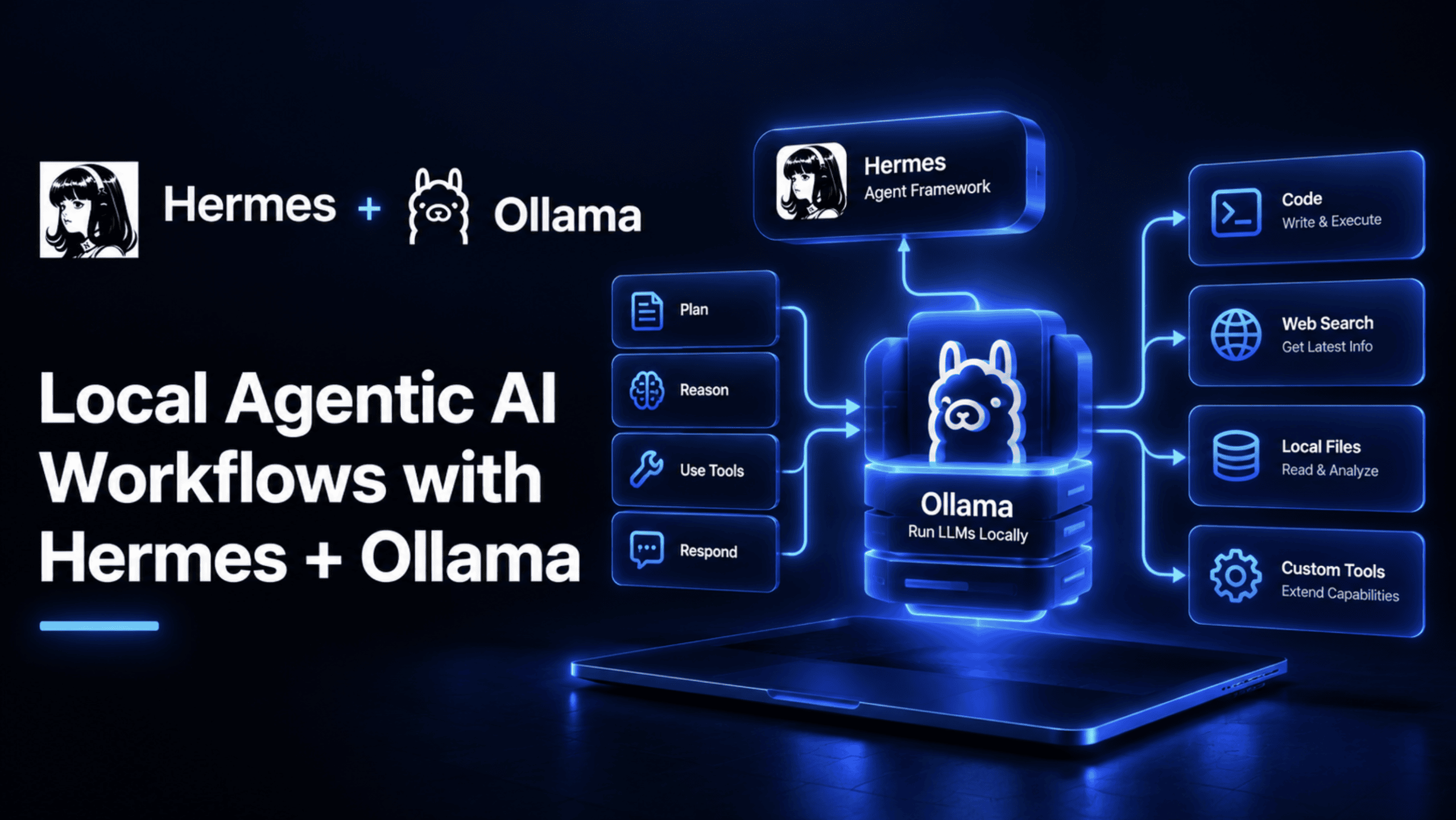
In this article, you will learn how to build a fully local, zero-cost agentic AI workflow using Hermes Agent and Ollama, so that your files, code, and conversations never leave your own hardware.
Topics we will cover include:
- How to install Ollama, choose the right local model for agentic work, and verify that the model is responding correctly before wiring anything else up.
- How to configure Hermes Agent to use your local Ollama endpoint, and how to optimize context window size and model loading for real agentic tasks.
- How to extend the setup with a Telegram gateway for remote access and a cloud fallback for questions the local model cannot handle well.
A typical coding session against a cloud AI API runs somewhere between $0.60 and $0.80 depending on the provider, and a heavier session can climb to $5 to $20, according to Nous Research’s own cost breakdown for agentic work. That adds up fast for a hobbyist, a student, or anyone running frequent automation, and it comes with a second cost that is easy to overlook: every file, every question, every line of code gets sent to a third party’s servers.
This article builds the alternative: a genuinely local, zero-cost agentic AI workflow using Hermes Agent, an open-source AI agent from Nous Research, paired with Ollama for local model serving.
What Is Hermes Agent?
Hermes Agent is an open-source AI agent built by Nous Research, released under the MIT license and currently at version 0.21.1 as of this writing. It ships two ways: a native desktop app for macOS, Windows, and Linux, and a terminal-first CLI you install directly. What separates it from a basic chat interface is genuine agentic capability; it edits files, runs terminal commands, browses the web, and can delegate work to isolated sub-agents with their own conversations and tools.
A few features matter specifically for this article. Persistent memory means Hermes learns your projects over time and can auto-generate reusable skills from how it solved past problems, rather than starting from zero every session. Its messaging gateway connects the same agent and the same memory to Telegram, Discord, Slack, WhatsApp, and email. And its sandboxing system supports five different isolation backends — local, Docker, SSH, Singularity, and Modal — so commands it runs do not have to touch your host system directly if you would rather they did not.
What Is Ollama?
Ollama is the layer underneath Hermes in this setup: a tool that downloads, serves, and manages open-weight language models directly on your own hardware, exposing them through a local API that looks and behaves like a standard cloud LLM endpoint. That last detail matters more than it sounds: because Ollama’s API is OpenAI-compatible at /v1/chat/completions, Hermes can talk to a model running entirely on your laptop using the exact same integration path it would use for a cloud provider like OpenAI or Anthropic — just pointed at localhost instead of the internet.
The division of labor is clean: Ollama’s only job is running the model and answering requests for it. Hermes’ job is being the actual agent — deciding when to call a tool, editing a file, running a command, browsing the web, and interpreting what comes back. Neither one replaces the other, and this tutorial needs both.
What We’re Building
The concrete project for this article is a private, zero-cost local assistant that can organize and answer questions about a real folder of files on your machine, search the web when a question genuinely needs current information, and — once the core setup works — stay reachable from your phone via a Telegram bot when you are away from your desk. As a final layer, it will have a cloud fallback configured so genuinely hard questions still get answered well, while the other 90% of everyday use costs nothing and never leaves your machine.
Every section from here builds one real piece of that project, in the order you would actually build it.
What You Need
Hardware requirements scale with the model you plan to run, and it is worth knowing both ends of the range before choosing.
| Component | Minimum | Recommended |
|---|---|---|
| RAM | 8 GB (for 3B models) | 32+ GB (for 27B+ models) |
| Storage | 5 GB free | 30+ GB (for multiple models) |
| CPU | 4 cores | 8+ cores |
| GPU | Not required | NVIDIA GPU with 8+ GB VRAM |
CPU-only setups genuinely work; they are just slower. A 9B model on a modern 8-core CPU runs at roughly 10 tokens per second, while a 31B model on CPU drops to about 2 to 5 tokens per second, meaning each response can take 30 to 120 seconds. That is usable for a background assistant, less pleasant for an interactive back-and-forth, which is worth factoring into which model you pick.
Install Ollama and Pull a Model
Install Ollama with its official install script:
|
1 |
curl -fsSL https://ollama.com/install.sh | sh |
Confirm it is actually running:
|
1 2 |
ollama --version curl http://localhost:11434/api/tags # Should return {"models":[]} |
Expected output:
|
1 2 3 4 5 |
$ ollama --version ollama version is 0.33.2 $ curl http://localhost:11434/api/tags {"models":[]} |
The first command checks that the binary is installed correctly. The second hits Ollama’s local API directly, and an empty models array is the expected, correct response at this point; it confirms the server is listening — you just have not downloaded a model into it yet.
Now pull a model. This is the single most consequential choice in the whole setup, because not every model can actually act as an agent:
| Model | Size on Disk | RAM Needed | Tool Calling | Best For |
|---|---|---|---|---|
| gemma4:31b | ~20 GB | 24+ GB | Yes | Best quality, strong tool use and reasoning |
| gemma2:27b | ~16 GB | 20+ GB | No | Conversational tasks, no tool use |
| gemma2:9b | ~5 GB | 8+ GB | No | Fast chat, Q&A, cannot call tools |
| llama3.2:3b | ~2 GB | 4+ GB | No | Lightweight quick answers only |
That “Tool Calling” column is the whole ballgame for this project. Hermes is an agentic assistant specifically because it can call tools, edit a file, run a command, search the web, and a model without tool-call support can only chat back at you — it cannot actually take an action on your behalf, no matter how well it writes. For the file-organizing, web-searching assistant this article is building, that means gemma4:31b is the real starting point, not the smaller options.
|
1 |
ollama pull gemma4:31b |
Once it is downloaded, confirm the model itself actually answers correctly:
|
1 2 3 4 5 6 7 |
curl http://localhost:11434/v1/chat/completions \ -H "Content-Type: application/json" \ -d '{ "model": "gemma4:31b", "messages": [{"role": "user", "content": "Say hello"}], "max_tokens": 50 }' |
Expected output:
|
1 2 3 4 5 6 7 8 9 10 11 12 13 14 15 16 17 18 19 20 21 |
{ "id": "chatcmpl-123", "object": "chat.completion", "created": 1735689600, "model": "gemma4:31b", "choices": [ { "index": 0, "message": { "role": "assistant", "content": "Hello! How can I help you today?" }, "finish_reason": "stop" } ], "usage": { "prompt_tokens": 10, "completion_tokens": 9, "total_tokens": 19 } } |
This sends a real chat completion request in the same JSON shape an OpenAI-style API expects, which is exactly the point: you are confirming this endpoint behaves like any other LLM API before wiring Hermes up to it. The response follows Ollama’s documented OpenAI-compatible format exactly; choices[0].message.content is the actual reply text, and this is the same field Hermes itself reads under the hood.
Configure Hermes
With Ollama serving a model, point Hermes at it. The guided path is the setup wizard:
|
1 |
hermes setup |
When it asks for a provider, choose Custom Endpoint and enter http://localhost:11434/v1 as the base URL, leave the API key empty (Ollama does not check for one), and set the model to gemma4:31b.
The direct path is editing ~/.hermes/config.yaml yourself:
|
1 2 3 4 |
model: default: "gemma4:31b" provider: "custom" base_url: "http://localhost:11434/v1" |
provider: "custom" is what tells Hermes to treat this as a generic OpenAI-compatible endpoint rather than looking for a specific provider’s authentication scheme. base_url is Ollama’s local address, and default sets which pulled model Hermes actually sends requests to.
Start Using Hermes
Launch it:
|
1 |
hermes |
Expected output:
|
1 2 3 4 5 |
Hermes Agent v0.21.1 Connected to: gemma4:31b (custom endpoint: http://localhost:11434/v1) Memory: loaded (0 skills, 0 past sessions) You: _ |
For the file-organizing project from the earlier section, here are real prompts to try against an actual project folder:
|
1 2 3 4 5 |
You: List all Python files in this directory and count the lines of code in each You: Read the README.md and summarize what this project does You: Create a Python script that fetches the weather for Ho Chi Minh City |
Expected output (for the first prompt, shortened):
|
1 2 3 4 5 6 7 8 9 10 11 |
Hermes: I'll list the Python files and count their lines. [running: find . -name "*.py" -exec wc -l {} \;] Found 4 Python files: agent.py 182 lines utils.py 64 lines test_agent.py 103 lines config.py 21 lines Total: 370 lines across 4 files. |
Each of these exercises a different real capability — the first uses the terminal and filesystem tools together, the second reads and reasons over a real file’s content, and the third has the agent write and could optionally run a fresh script. None of this involves a cloud call; Hermes uses the terminal tool, file operations, and your local model for all three, which is the entire point of this setup.
Picking the Right Model for Your Task
Not every request needs the full 31B model, and running it for a quick factual question wastes time you do not need to spend.
| Task | Recommended Model | Why |
|---|---|---|
| File edits, code, terminal commands | gemma4:31b | Only model here with reliable tool calling |
| Quick Q&A, no tool use needed | gemma2:9b | Fast responses for conversational tasks |
| Lightweight chat | llama3.2:3b | Fastest, but very limited capability |
Switch models mid-session without restarting anything:
|
1 |
/model gemma2:9b |
Expected output:
|
1 2 |
Switched to gemma2:9b. Note: this model does not support tool calling, file and terminal actions will be unavailable until you switch back. |
This is a genuinely practical habit worth building early — keep the big tool-calling model as your default for the file and web work this project actually needs, and swap down to a lighter model for a quick side question, then swap back. Ollama loads the active model into memory on demand and automatically unloads idle ones, so this switching costs you time on the next load, not disk space sitting unused.
Optimize for Speed
Three real levers, in the order most people actually need them.
Increase Ollama’s context window. Ollama defaults to a 2,048-token context, which is far too small for agentic work — Hermes requires at least 64,000 tokens to function properly with tool schemas and file content in play:
|
1 2 3 4 5 6 |
cat > /tmp/Modelfile << 'EOF' FROM gemma4:31b PARAMETER num_ctx 64000 EOF ollama create gemma4-64k -f /tmp/Modelfile |
A Modelfile is Ollama’s own format for customizing a model without re-downloading it. FROM names the base model, and PARAMETER num_ctx 64000 overrides its context window. This produces a new named model, gemma4-64k, which you then set as the default in your Hermes config instead of the base gemma4:31b.
Keep the model loaded. By default, Ollama unloads a model after 5 minutes of inactivity, meaning the next request pays a full reload cost:
|
1 2 |
curl http://localhost:11434/api/generate \ -d '{"model": "gemma4:31b", "keep_alive": "24h"}' |
This single request tells Ollama to hold this model in memory for 24 hours regardless of idle time, which matters most for the Telegram gateway in the next section — a bot that has to reload a 20 GB model on every incoming message would be unusable.
Use GPU offloading, if you have one. Ollama automatically offloads model layers to an available NVIDIA GPU with no configuration needed. Check what is actually happening with:
|
1 |
ollama ps |
This shows which model is currently loaded and how much of it landed on the GPU versus CPU, following Ollama’s documented ps output format. Even a partial offload — roughly 40 layers on a 12 GB GPU for a 31B model, with the rest on CPU — gives a real, noticeable speedup over CPU-only.
Optional: Run as a Gateway Bot
With the core agent working, expose it to Telegram so it is reachable from your phone, still running entirely on your own hardware.
Create a bot through @BotFather on Telegram and get its token, then add it to ~/.hermes/config.yaml:
|
1 2 3 4 5 6 7 8 9 |
model: default: "gemma4:31b" provider: "custom" base_url: "http://localhost:11434/v1" platforms: telegram: enabled: true token: "YOUR_TELEGRAM_BOT_TOKEN" |
Then start the gateway instead of the regular CLI session:
|
1 |
hermes gateway |
Expected output:
|
1 2 3 4 |
Hermes Gateway v0.21.1 Model: gemma4:31b (custom endpoint: http://localhost:11434/v1) Telegram: connected as @your_bot_name Listening for messages... |
The platforms.telegram block is additive — it sits alongside the same model configuration rather than replacing it, which is exactly why the file-organizing assistant you built earlier is the same agent now answering you on Telegram: same memory, same model, different surface.
Optional: Set Up Fallbacks
Local models can genuinely struggle on the hardest questions, and rather than accepting a bad answer, you can configure a cloud model as a fallback that only activates when it is actually needed:
|
1 2 3 4 5 6 7 8 |
model: default: "gemma4:31b" provider: "custom" base_url: "http://localhost:11434/v1" fallback_providers: - provider: openrouter model: anthropic/claude-sonnet-4 |
fallback_providers is a list, evaluated only when the primary model fails or repeatedly produces a malformed response — not on every request. That is what keeps the cost model honest: the large majority of everyday use stays free and local, and only the genuinely hard cases reach a paid API, which is the actual point of building a hybrid setup rather than an all-local or all-cloud one.
Wrapping Up
What you have running at the end of this article is a real, complete local workflow: Ollama serving a genuinely tool-capable model on your own hardware, Hermes using that model to read your files, run commands, and search the web with zero API cost and zero data leaving your machine, reachable from your phone through the Telegram gateway when you are away from your desk, with a cloud model waiting quietly in reserve for the rare question local hardware cannot handle well.
That is the actual shape of a good local-first setup — not all-or-nothing between free-but-limited and capable-but-expensive, but a system where the free path handles almost everything and the paid path only ever gets called in when it has genuinely earned its cost.



The article mentions a “file-organizing project from the earlier section”.
Was this left out of the article or was it referring to a previous article?